Team Registration
Configure how teams can join your league.
The Team Registration page starts by asking how teams will join your league:
- Teams register on hoops.love: Share a registration link. Captains sign up, and can pay in-app if you want.
- I already have my teams: Teams signed up already, or you collect them somewhere else. You add or import them after your league is created.
I Already Have My Teams
Pick this when registration happens outside hoops.love: a spreadsheet, another sign-up form, or returning teams you already know. You only need to enter the expected number of teams. hoops.love uses it to estimate your hosting fee and to know when all your teams are in.
After you save, your league has no registration link and nobody can sign up through hoops.love. Instead, the setup checklist on your league page lets you:
- Import teams: Paste a team list or upload a file. See Importing Teams.
- Create schedule: Start your schedule with the teams you've added so far. See Starting Your Schedule Early.
We start working on your schedule as soon as all of your expected teams are in, when you click "Create schedule", or on the scheduling date shown on your league page, whichever comes first.
You can't switch a league to hoops.love registration after it's created. If more teams join later, add them from the Teams table.
Teams Register on hoops.love
Pick this to collect registrations through hoops.love. You'll see a form that looks like this:
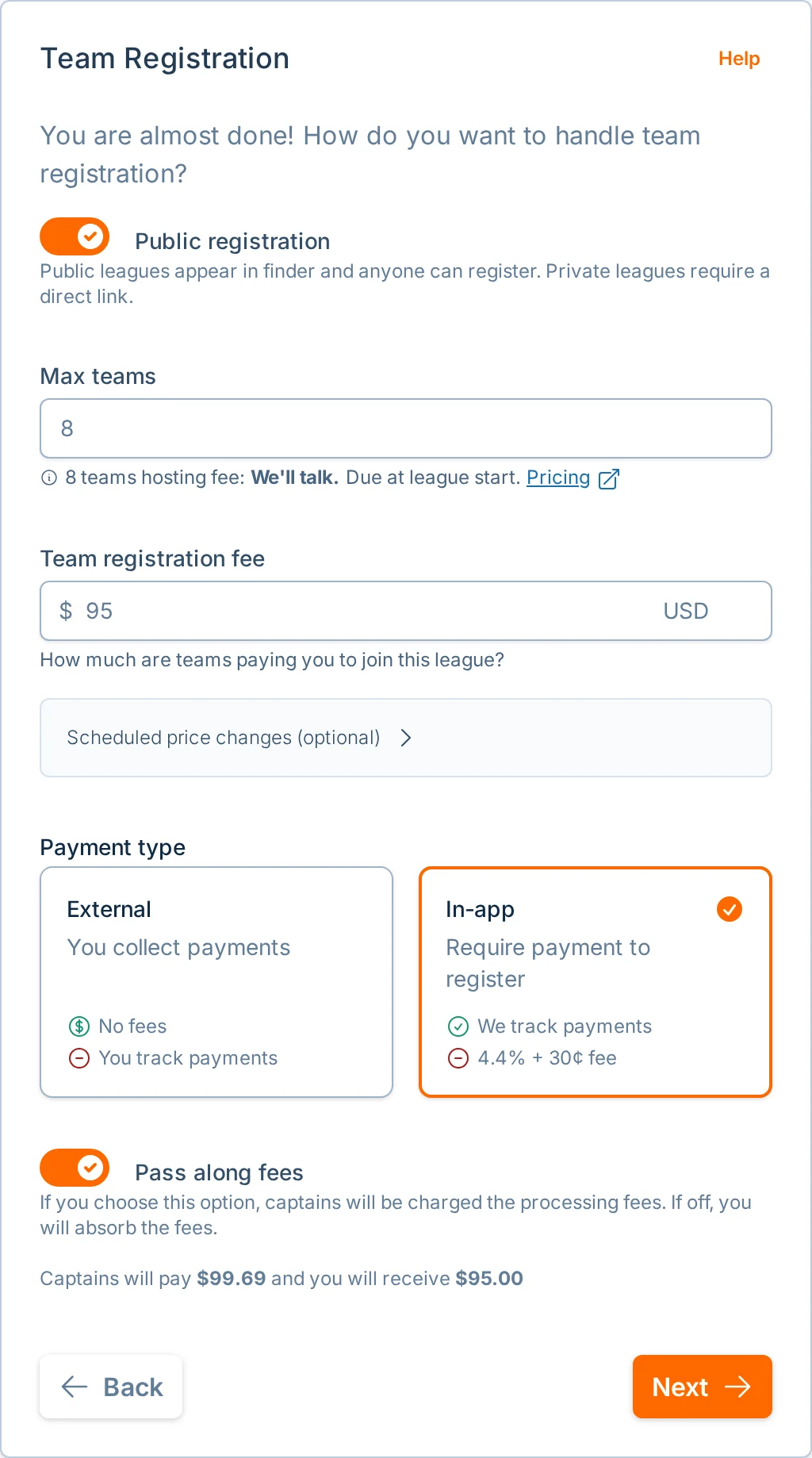
These are the setup-time choices. After the league is created, use Registration Settings to change these controls, copy the registration link, enable late registration, or reopen registration if a spot opens later.
Field Descriptions
Registration Type
Choose whether your league registration will be public or private:
- Public Registration: Your league will be visible and available for registration on https://app.hoops.love/find
- Private Registration: Teams will need a specific registration link to join your league
Private registration is ideal when you:
- Want to restrict registration to specific groups (e.g., Facebook group members)
If registration is private, you can schedule it to become public later by setting "Make registration public at." This keeps registration private until the date and time you choose.
Maximum Teams
Set the maximum number of teams your league can support. hoops.love automatically calculates a suggested limit based on:
- Available courts
- Time slots
However you may still need to update the value to match your expectations.
On pay-as-you-go, hoops.love charges $15 per team, based on the teams in your league when you approve your schedule. Learn more in Billing and Hosting Fees.
The final price is determined by the number of teams included in the schedule, which may differ from the maximum you set here.
Registration Fee
Set the registration fee in USD that team captains will need to pay to join your league.
You can also schedule price changes. Use this for early-bird pricing, late pricing, or a planned fee increase after a certain date. Scheduled price changes apply to future registrations after the change takes effect.
In-app payments require a fee greater than $0. If the league is free, or if a scheduled price change needs to make registration free, use external payments.
Payment Processing
hoops.love supports two payment processing options:
External Payments
- ✅ No processing fees
- 👎 Manual payment tracking required
External payments allow you to use your preferred payment processor (Venmo, PayPal, Square Cash, etc.). You can add an optional payment link and payment note for captains, but you'll need to track payments manually because hoops.love cannot enforce payment during registration.
In-App Payments
- ✅ Automatic payment enforcement
- 👎 4.4% + $0.30 processing fee
In-app payments require payment at registration, eliminating the need to track payments manually. You can choose to pass the processing fee to captains by selecting "Pass along fees" in the form:
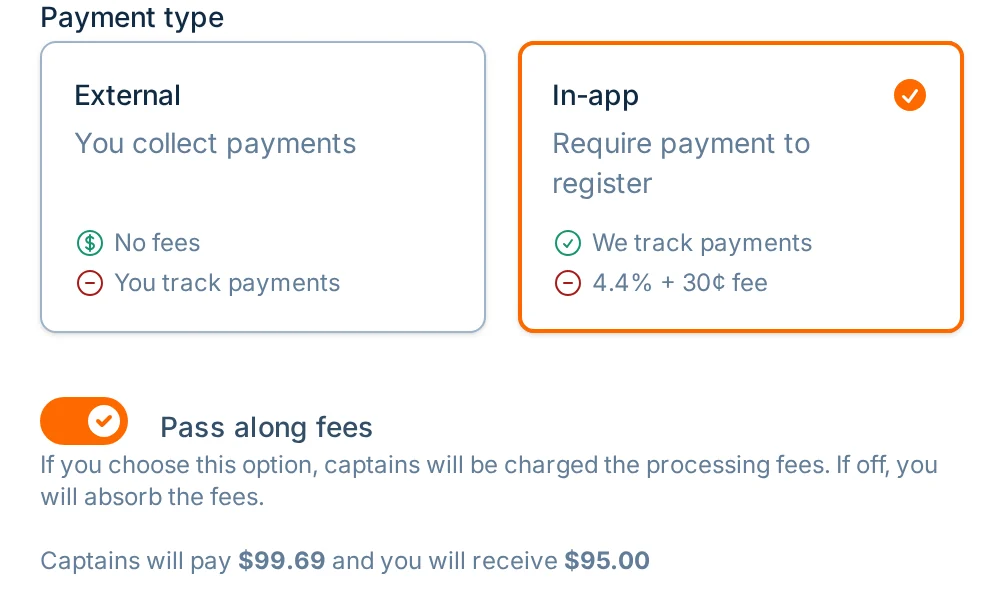
To use in-app payments, connect your Stripe account from the Billing page by clicking "Connect to Stripe" and following the instructions. For more detail, see Billing and Hosting Fees.
Stripe is a leading payment processor known for its security, reliability, and compliance standards.
Next Steps
When you've completed the registration settings, click "Next" to proceed to the final review page.